CYBERRAKSHAK LABS · RESEARCH #079

🔐 Are Apps Using Your Phone’s Camera or Microphone? How to Check on Android

Cybersecurity awareness | Privacy indicators, permission history and practical device hygiene

By Vivek Kumar · Published 1 November 2026
RESEARCH#079
CATEGORYAndroid Security / Mobile Privacy / Permission Management
CRL ASSESSMENTAWARENESS
RESEARCH LEVELPractical Security Awareness
PUBLISHED2026-11-01
Source & social links:
LinkedIn Post ↗ WhatsApp ↗ YouTube ↗
How CyberRakshakLabs researches threats →
Your Android phone can show when an app is using the camera or microphone—and help you review which apps accessed them recently.
Important context:

Camera and microphone access is often legitimate. An indicator or permission grant is not proof of spyware, and an indicator alone does not prove recordings were sent to an attacker.

Executive Summary

Android provides built-in controls to identify active camera and microphone access, review recent permission activity and revoke app permissions. The aim is not to treat every sensor access as malicious: camera and microphone use is normal for calls, video meetings, photography and voice features. Users should identify the app, check whether access matches the activity they were performing, and review permissions regularly. Antivirus and mobile security tools can add protection, but should not replace checking app permissions, installation sources and device behaviour.
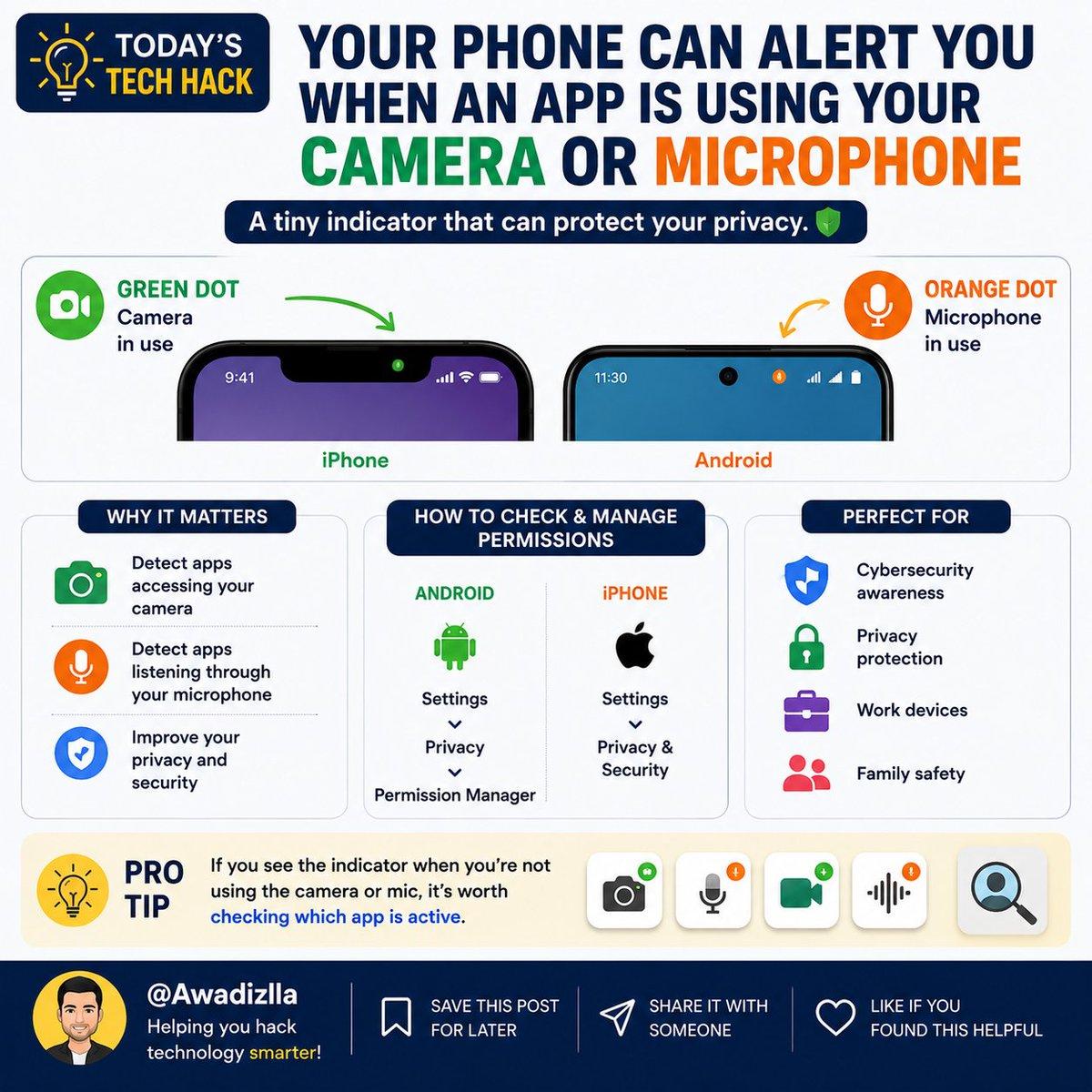
Infographic showing camera and microphone privacy indicators and how to check app permissions on Android
Why It Matters

Camera access can expose images and surroundings; microphone access can capture speech and ambient audio while an app is permitted to use it. A permission grant is an authorization boundary, not proof of malicious activity. Unexpected access, unnecessary permissions or repeated background behaviour should prompt a review.

1. Live Camera and Microphone Indicators

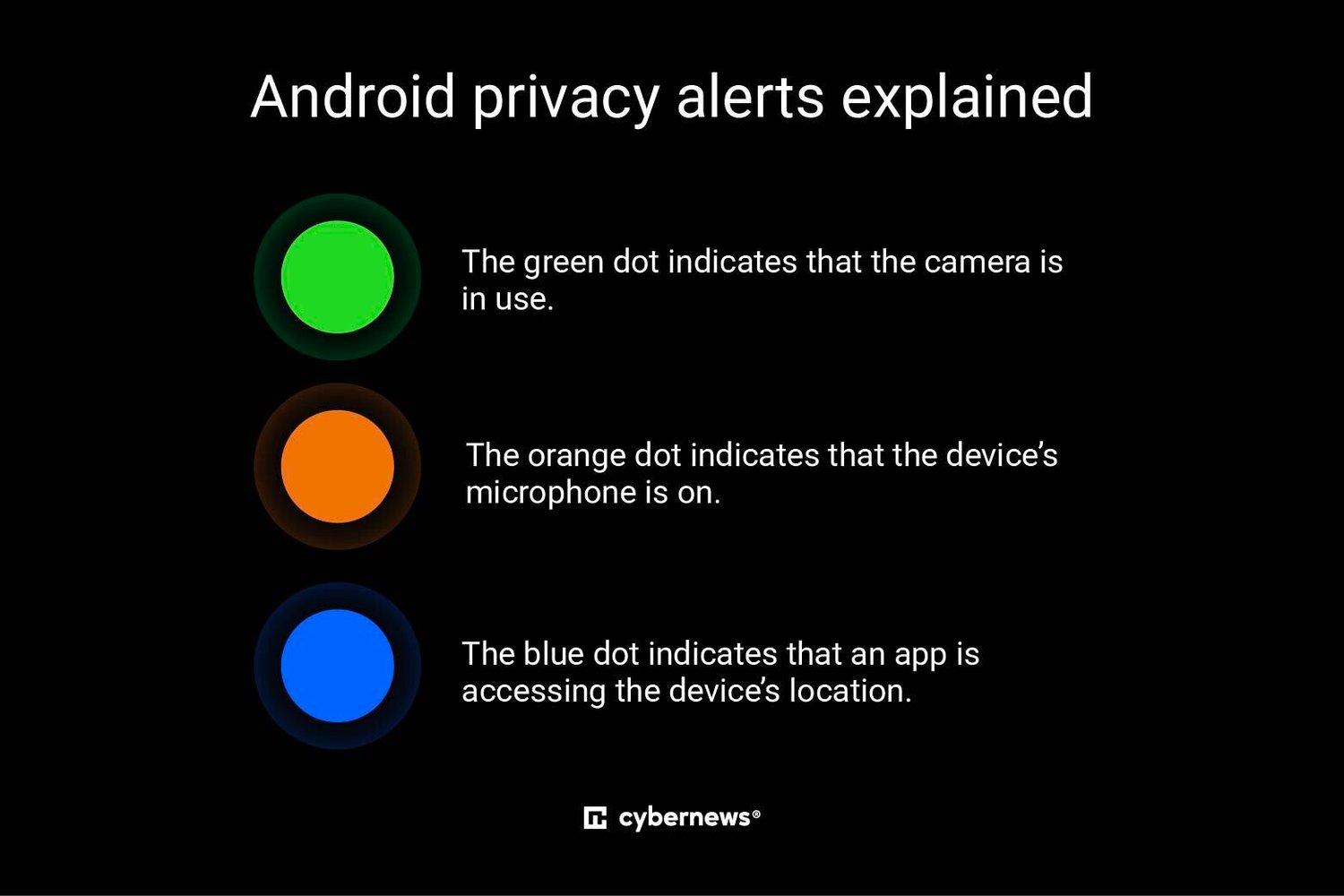
On Android 12 and later, a green privacy indicator appears near the top-right of the screen when an app accesses the camera or microphone. Swipe down and tap the indicator to identify the app or service using the sensor. Some interfaces allow a second tap to manage permissions. A brief indicator can persist momentarily after access, so identify the listed app and context before drawing conclusions.

2. Privacy Dashboard: Review Recent Access

Typical route: Settings → Security & privacy (or Privacy) → Privacy dashboard → Camera or Microphone. Select a permission to see which apps accessed it and when. Google documents a 24-hour history on Android 12 and up to seven days on Android 13; exact availability and menu names vary by Android version and manufacturer. If unavailable, search Settings for Privacy dashboard, Permission manager, Camera or Microphone.

3. Permission Manager: Revoke Unnecessary Access

Open Settings → Privacy → Permission manager (or Apps → select app → Permissions). Review Camera and Microphone. Depending on Android version, choices may include Allow only while using the app, Ask every time or Don’t allow. Revoke permissions from apps that do not need them for their core function. Reassess before restoring access if an app stops working.

4. Quick Settings: Temporarily Disable Sensors

On supported Android 12+ devices, swipe down twice to open Quick Settings and use the Camera access or Microphone access tile to disable sensor access system-wide. If the tile is missing, edit Quick Settings and add it if supported. Disabling access may prevent legitimate apps from using the sensors until re-enabled.

5. Monitor App Behaviour

Periodically review installed apps, publisher identity, installation source and requested permissions. Remove apps that are unused, untrusted or request access unrelated to their purpose. Investigate unusual battery or data usage, unexpected background activity, unfamiliar accessibility services, device administrator privileges and unknown VPN profiles. These are investigation leads, not proof of spyware by themselves.

6. Antivirus: Useful Layer, Not Blind Trust

Reputable mobile security products can help detect known malware and risky applications, but no antivirus guarantees detection of every malicious or abusive app. Keep security software updated, but combine it with Android privacy indicators, permission controls, OS/app updates and careful installation practices. Avoid untrusted APKs and unofficial download sites.

7. If You Find Unexpected Access

Identify the app shown by the indicator or dashboard and compare access with the feature you were using. If access is unexpected, revoke the permission and review the app publisher, source and other permissions. Uninstall unfamiliar or untrusted apps; update Android and applications; scan with a reputable security product. If suspicious behaviour continues, contact the device manufacturer or a trusted incident-response professional. Consider a factory reset only after understanding backup and account recovery. A sensor indicator alone does not prove recordings were transmitted to an attacker.

8. User Checklist
  • Check green camera/microphone indicators while using the phone.
  • Tap an indicator to identify the app or service.
  • Review Camera and Microphone in Privacy Dashboard regularly.
  • Revoke unnecessary permissions using Permission Manager.
  • Use Quick Settings to disable sensors temporarily when appropriate.
  • Review new apps, publishers, permissions and background behaviour.
  • Install updates and avoid untrusted APKs.
  • Use reputable security software as an additional layer, not a replacement for built-in controls.
Android privacy alerts explained: green camera indicator, orange microphone indicator and blue location indicator
Conclusion

A short regular privacy check—especially after installing new applications—can reduce unnecessary exposure. Understand what is installed, what permissions it has and whether its behaviour makes sense. Android’s built-in indicators and permission controls are useful tools, but users should apply judgement rather than assume every access is malicious.

Sources